
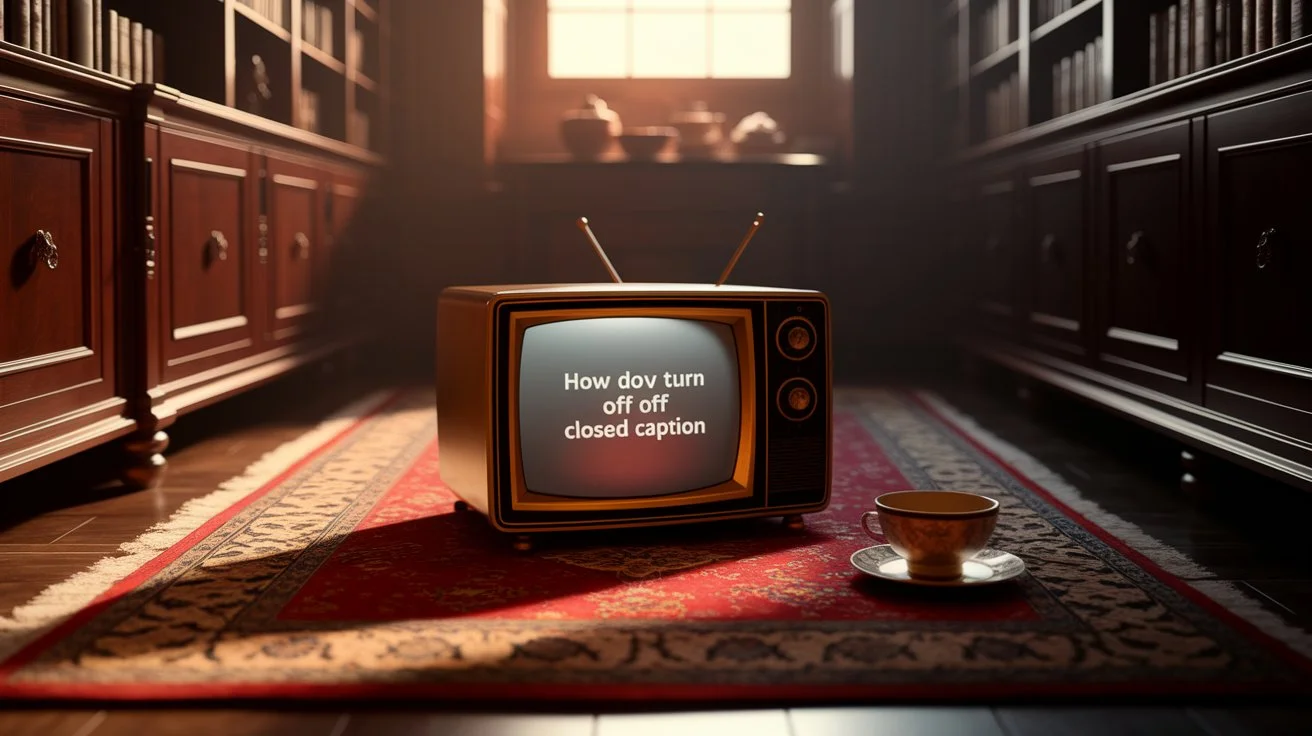
Turning off closed caption on Roku means disabling the on-screen text that displays dialogue and audio cues while watching TV or streaming content. This feature, while helpful for accessibility, can sometimes interfere with your viewing experience. Roku offers multiple easy ways to manage captions so you can enjoy a clean, distraction-free screen.
Streaming on Roku is amazing, but nothing breaks the vibe faster than persistent closed captions covering your favorite scenes 😅. Whether it’s a romantic movie night, a thrilling series binge, or catching up on live news, knowing how to turn off closed caption on Roku is essential for effortless entertainment. Let’s dive deep into the ultimate guide that’ll have your Roku screen looking sleek in no time.
Understanding Closed Captions on Roku 📺💡

Closed captions (CC) are textual representations of audio content, including dialogue, sound effects, and music cues. They’re designed to make content accessible for the deaf and hard-of-hearing community. On Roku, captions can be toggled on or off system-wide or per channel.
Why You Might Want to Turn Them Off:
-
Distraction-free viewing of movies or shows
-
Avoiding spoilers from dialogue before you hear it
-
Enjoying cinematic visuals without text overlays
-
Simplifying interface for kids or casual viewing
How to Turn Off Closed Caption on Roku in 3 Simple Steps ✨

Here’s the easiest method to turn off CC directly from your Roku remote:
-
Press the Home Button 🏠 – Start from your Roku home screen.
-
Navigate to Settings ⚙️ – Scroll down to Accessibility.
-
Select Captions – Toggle Off.
Voila! Your Roku is now free of on-screen text overlays, letting the visuals shine.
Turning Off Closed Captions per Streaming Channel 📲

Some apps, like Netflix or Hulu, may have their own caption settings:
-
Netflix: Play a video → Press the Down arrow → Select Audio & Subtitles → Toggle Off.
-
Hulu: While playing → Press Up → Audio & Subtitles → Toggle Off.
-
Disney+: Click the speech bubble icon → Turn captions off.
Tip: Roku allows system-wide control, but channel-specific settings give finer control if captions are only annoying on certain apps.
Quick Roku Remote Shortcut to Disable Captions 🕹️‘

You can also disable captions during playback:
-
Press the Star (*) button on your remote → Select Captions Mode → Off.
-
This method works instantly while watching content and is great for temporary changes.
Why Closed Captions Might Automatically Turn On 🔄

Sometimes, captions turn on unexpectedly:
-
Default accessibility settings enabled
-
Streaming apps’ preset preferences
-
Roku software updates resetting preferences
Knowing how to manage both system and app-level settings prevents interruptions.
Using Roku Mobile App to Manage Captions 📱

Roku’s mobile app mirrors remote functions:
-
Open the Roku app → Tap Remote.
-
Play content → Tap Options → Closed Captions.
-
Toggle Off ✅
Perfect if your remote is out of reach or lost!
Customizing Caption Appearance for Better Viewing 🎨

If you don’t want to completely turn off CC, you can customize:
-
Font size & style
-
Text color & opacity
-
Background color
This helps keep captions readable without overwhelming the screen.
Closed Caption Settings for Kids’ Shows 🧸✨
For family viewing:
-
Enable captions selectively
-
Use parental settings to lock or unlock captions
-
Choose kid-friendly font sizes
This ensures children can follow along without the text cluttering adult content.
Brand New Caption Ideas (for Social Media / YouTube / TikTok)
- “Closed captions ruining your vibe? Here’s how to turn them OFF on Roku in 2026 🔥 #RokuTips”
- “No more annoying subtitles! Quick Roku closed caption fix 2026 📺✨”
- “How to turn off closed caption on Roku in under 30 seconds ⏱️ (Life-changing hack)”
- “Roku users: Disable closed captions NOW for pure movie nights 🎬 #2026”
- “Stuck with captions on Roku? Fix it in 10 seconds – 2026 guide 🔇”
- “Finally! How to turn off closed caption on Roku (Updated 2026) 🚀”
- “Clean screen = Better viewing. Turn off Roku closed captions today 📱”
- “Roku closed caption off tutorial every streamer needs in 2026 💎”
- “Stop the text overload! Roku closed captions disabled in seconds ⚡”
- “2026 Roku hack: Turn off closed captions & enjoy uninterrupted shows 🎥”
Short Captions That Inspire Emotion 💌
Even if captions are off, you can enjoy clever captions for your social shares while watching:
-
Movie night magic 🎬✨
-
Popcorn & cozy vibes 🍿❤️
-
Lost in the story 💭💖
-
Screens & snuggles 🛋️💑
-
Pause. Play. Repeat 🔁🎥
Cute Captions for Cozy Streaming Nights 🥰
-
Netflix & chill vibes 😘
-
Blanket burrito mode 🥲🛏️
-
Soft lights, big dreams ✨🕯️
-
Movie marathon munchies 🍫🎬
-
Hearts & popcorn ❤️🍿
Funny Captions for Streaming Shenanigans 😂
-
“I paused my life for this” ⏸️😅
-
“Spoiler alert: I’m obsessed” 😜📺
-
“Eat. Stream. Repeat.” 🍕🎬
-
“My snack is judging your choices” 🍫👀
-
“Buffering… like my motivation” ⏳😂
One-Word Captions for Bold Social Media Impact 🖤
-
Binge
-
Cozy
-
Escapism
-
Drama
-
Chill
-
Laugh
-
Relax
Seasonal & Occasion-Based Captions 🌸🎄
Summer Streaming:
-
Sunny vibes & bingeing 🌞📺
-
Ice cream & series dreams 🍦🎬
Winter Streaming:
-
Blanket fort & hot cocoa ❄️☕
-
Snowed in, tuned out 🌨️📺
Valentine’s Movie Night:
-
Hearts on screen, hearts in hand ❤️💌
-
Kiss me by the TV 😘📺
Niche Variations for Genre Lovers 🎭🎨
Horror Fans:
-
Shadows & screams 👻🩸
-
Don’t watch alone 😱🖤
Romantic Fans:
-
Love, laughter, cinematic bliss 💖🎬
-
Holding hands, not remotes 👫📺
Comedy Lovers:
-
Giggle fest incoming 😂🎉
-
Snack in hand, laugh in heart 🍿🤣
Platform-Specific Caption Insights 📊
-
Instagram Reels: Short, witty captions grab attention
-
Facebook Stories: Emojis + context works best
-
TikTok Clips: Trendy words & hashtags increase shares
Romantic Psychology Behind Movie Nights ❤️
Watching movies together increases oxytocin—the bonding hormone. Turning off captions lets you:
-
Focus on facial expressions & chemistry
-
Feel intimacy in pauses & gestures
-
Strengthen emotional connection without distractions
Tip: Tag your partner ❤️ and make it a weekly ritual.
Caption-Writing Framework for Social Media 🎯
-
Hook: Grab attention immediately
-
Emotion: Add feelings & relatability
-
Action: Encourage comment, save, or share
-
Hashtags: Relevant + trending for reach
Example:
“Movie night vibes 🍿💖 Who’s your binge buddy? Tag them below! #RokuNights #CozyStreaming”
Engagement Strategy Insights for Streaming Posts 💬
-
Ask questions: “Which movie should we watch next?”
-
Encourage tagging: “Tag your binge buddy ❤️”
-
Use polls on Instagram Stories: “Popcorn or nachos?”
H2: Mistakes to Avoid While Managing Captions ❌
-
Forgetting app-specific settings
-
Ignoring accessibility preferences
-
Not checking updates after Roku software upgrades
-
Over-customizing fonts that reduce readability
Hashtags to Boost Streaming Content Reach 🔖
-
#RokuTips
-
#ClosedCaptionControl
-
#StreamingLife
-
#MovieNightVibes
-
#CozyStreaming
-
#TVAddict
-
#PopcornAndChill
Frequently Asked Questions About Roku Closed Captions ❓
Q1: Why are captions always on my Roku?
A: Check system-wide accessibility settings and individual app preferences.
Q2: Can I disable captions for only certain shows?
A: Yes, toggle CC per channel while streaming.
Q3: Do all Roku devices support caption customization?
A: Most modern Roku models allow font, color, and opacity changes.
Q4: Is there a shortcut to toggle captions instantly?
A: Press the Star (*) button during playback → Select Captions Mode.
Q5: Will turning off captions affect accessibility features?
A: Only the visual CC is disabled; audio accessibility features remain.
Q6: Can captions interfere with streaming quality?
A: No, captions don’t impact performance; they just overlay text.
Q7: How to fix captions not turning off?
A: Restart Roku, check for updates, and adjust app-specific CC settings.
Q8: Are captions customizable by color or font?
A: Yes, go to Settings → Accessibility → Captions → Customize.
Q9: Can Roku mobile app control captions?
A: Yes, toggle CC on/off via the mobile remote interface.
Q10: Do live TV apps manage captions differently?
A: Yes, some apps may have their own CC toggle independent of Roku system settings.
Tips for a Flawless Viewing Experience 🛋️✨
-
Keep Roku software updated
-
Adjust captions only if they enhance or distract
-
Pair with cozy blankets and snacks for ultimate comfort
-
Tag friends for shared binge sessions
Conclusion 💖
Turning off closed caption on Roku is more than just removing text—it’s about reclaiming your cinematic experience, enjoying every glance, laugh, and tear without distractions. Whether it’s a romantic movie night, a cozy solo binge, or family streaming, knowing how to control captions empowers you to personalize your viewing in a way that enhances connection, fun, and comfort.
Now that your Roku screen is free of interruptions, grab your favorite snacks 🍿, snuggle up, and immerse yourself in the story. Don’t forget to share the joy—tag your binge buddy ❤️, comment your favorite scene, and save these tips for your next perfect streaming night.
Elara Quinn writes with elegance and creativity, bringing fresh ideas and heartfelt expressions to life. Her content is known for its depth, simplicity, and emotional impact.