
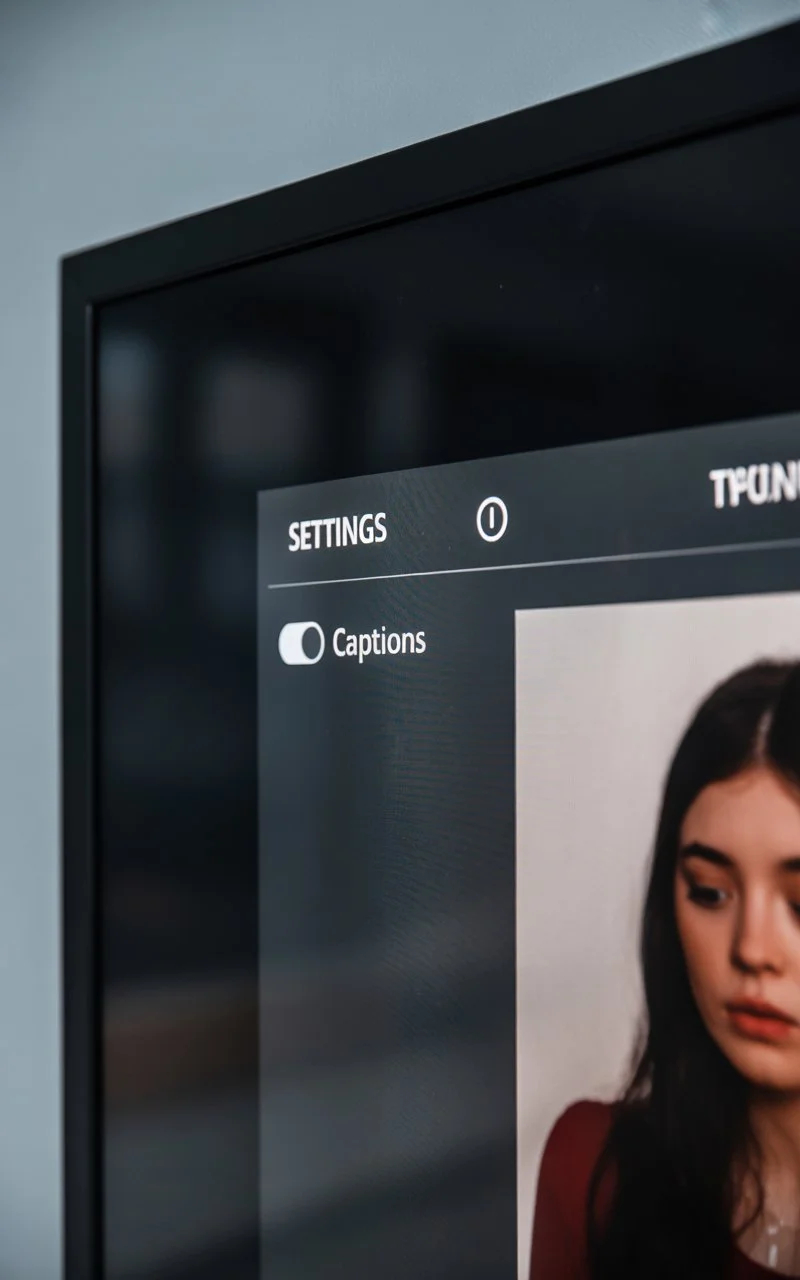
If you’re wondering how to stop subtitles from popping up, turning off captions on Samsung TV simply means disabling Closed Captions or Subtitles from your TV’s Accessibility or Settings menu. In most Samsung Smart TVs, you can do this by going to Settings → General → Accessibility → Caption Settings → Caption = Off. The exact steps vary slightly by model and year — and I’ll walk you through every option below.
Save this guide for later 💾 — it works for nearly all Samsung TVs.
Why Are Captions Suddenly On?
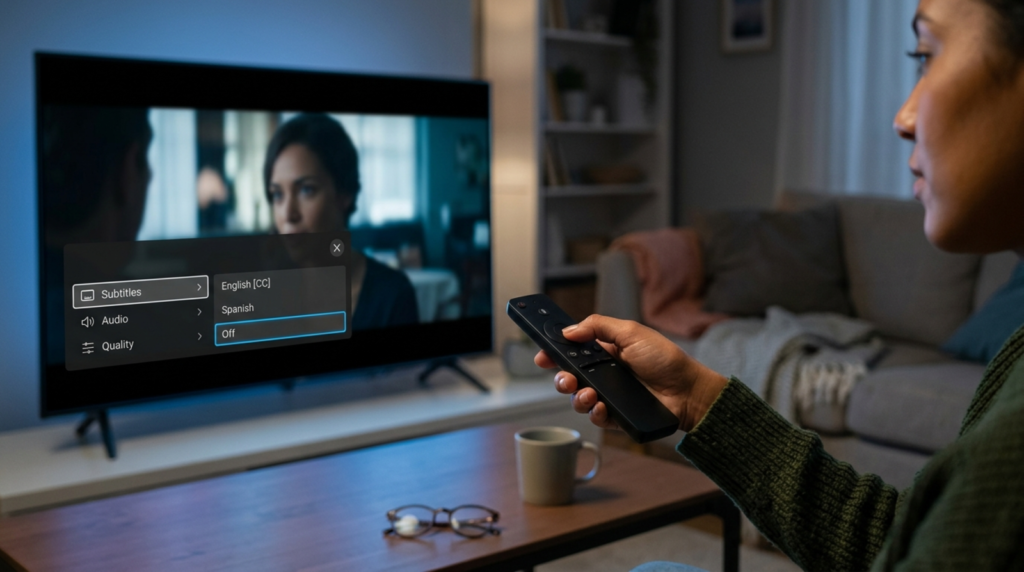
Let’s start with the emotional reality: captions usually turn on by accident 😅
Common reasons include:
-
Someone pressed the CC button on the remote
-
A streaming app defaulted to subtitles
-
Firmware updates reset settings
-
Kids or guests explored the menu
-
HDMI devices forced captions on
You’re not alone. This happens daily to thousands of Samsung users.
Turning Off Captions on Samsung TV (Universal Method)
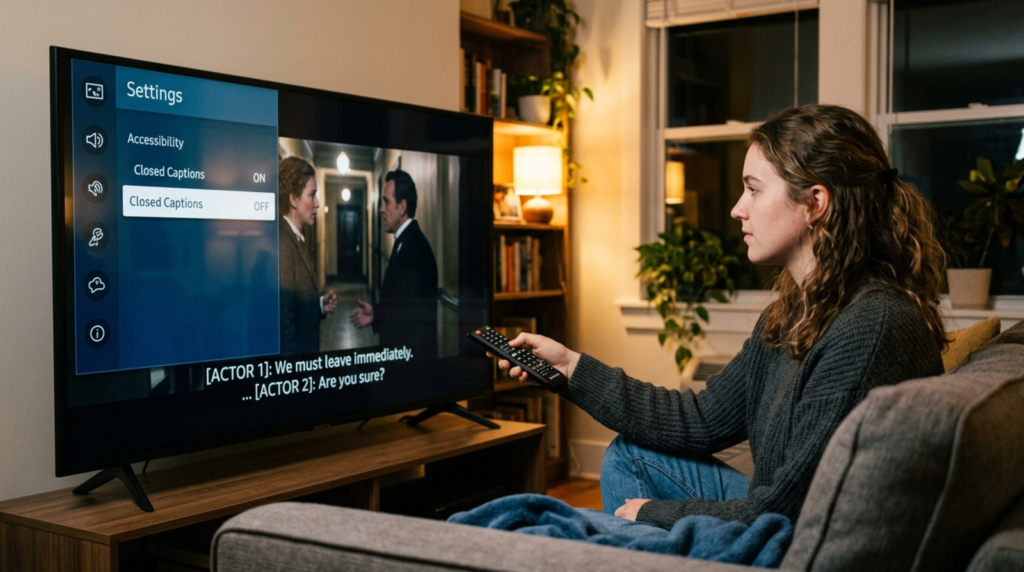
This works on most Samsung Smart TVs from 2016–2025.
Step-by-Step:
-
Press Home on your remote
-
Go to Settings
-
Select General
-
Choose Accessibility
-
Open Caption Settings
-
Toggle Caption → Off
That’s it ✨
If subtitles are still showing, keep reading — there are app-specific overrides.
Turning Off Captions Using the Samsung Remote (Quick Method)
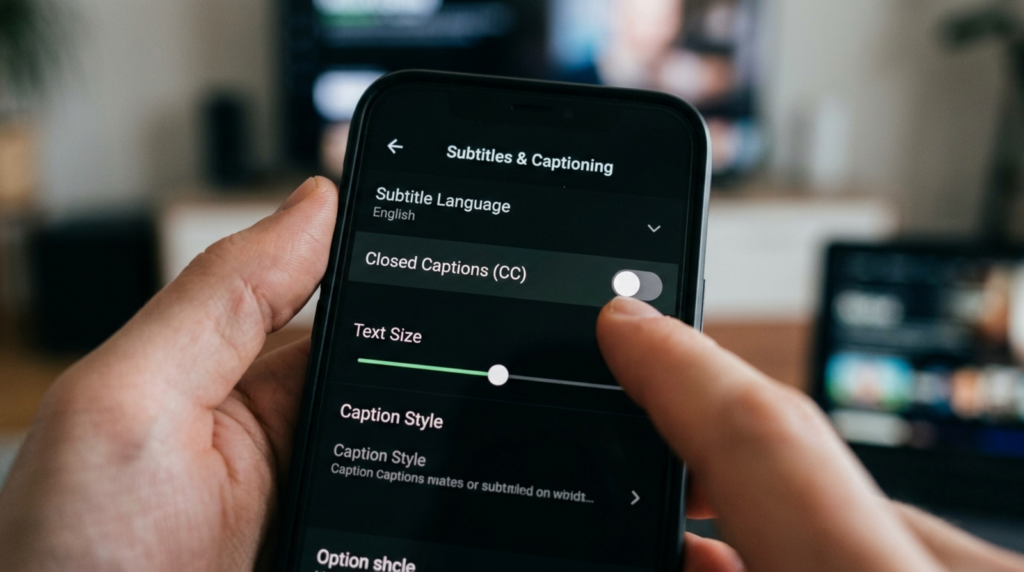
Some remotes have a shortcut.
Try this:
-
Press Menu
-
Navigate to Broadcasting
-
Select Closed Caption
-
Turn Off
On older models, look for a CC button directly on the remote.
Turning Off Captions on Samsung TV
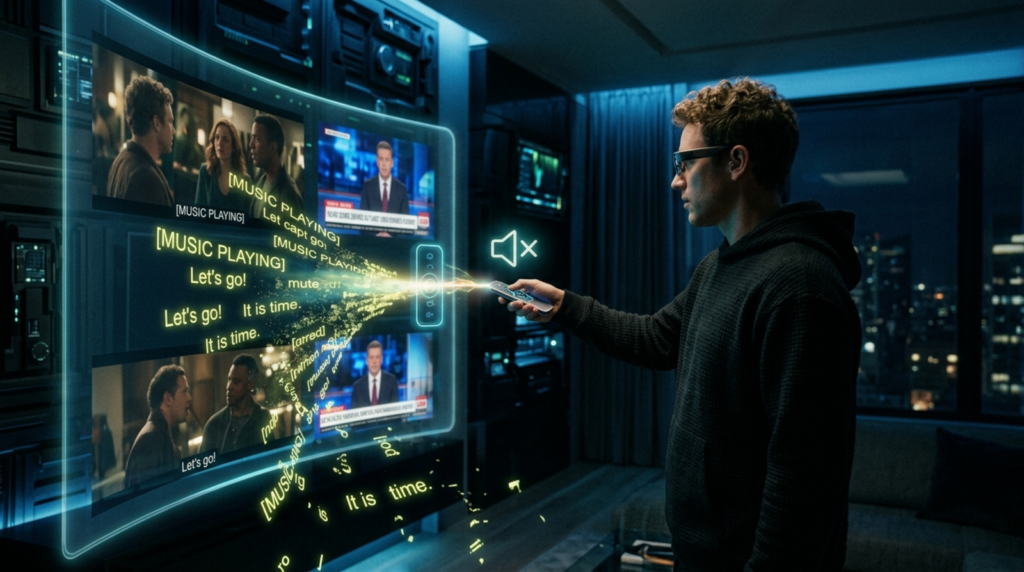
For newer Crystal UHD, QLED, Neo QLED, and Frame TVs:
-
Home → Settings
-
All Settings
-
General & Privacy
-
Accessibility
-
Caption Settings
-
Caption → Off
Samsung moved Accessibility deeper into menus after 2020.
Turning Off Captions on Older Samsung TVs
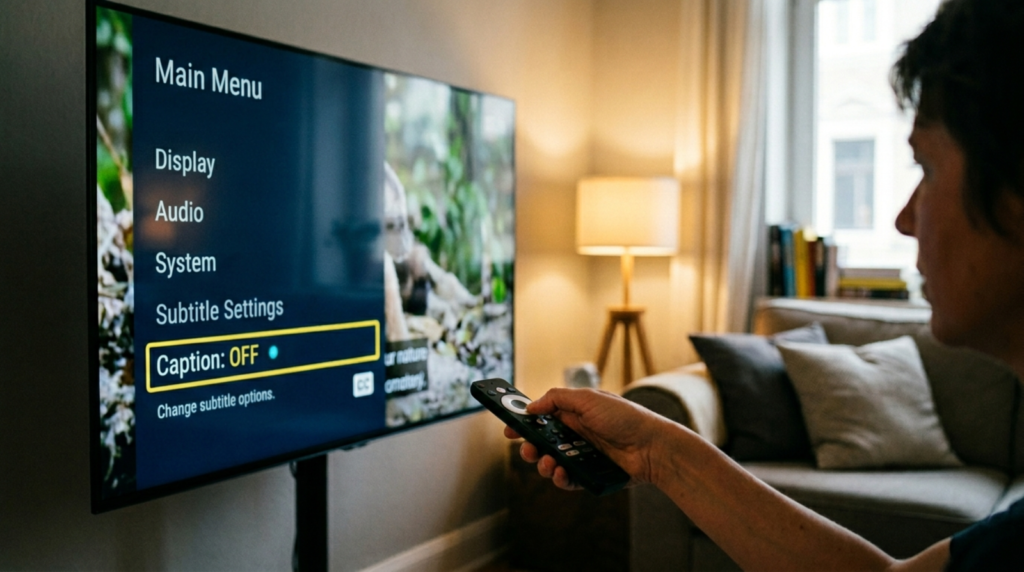
Older interface:
-
Menu
-
System
-
Accessibility
-
Closed Caption
-
Off
Simple, classic, effective.
Subtitles vs Closed Captions (Yes — They’re Different)
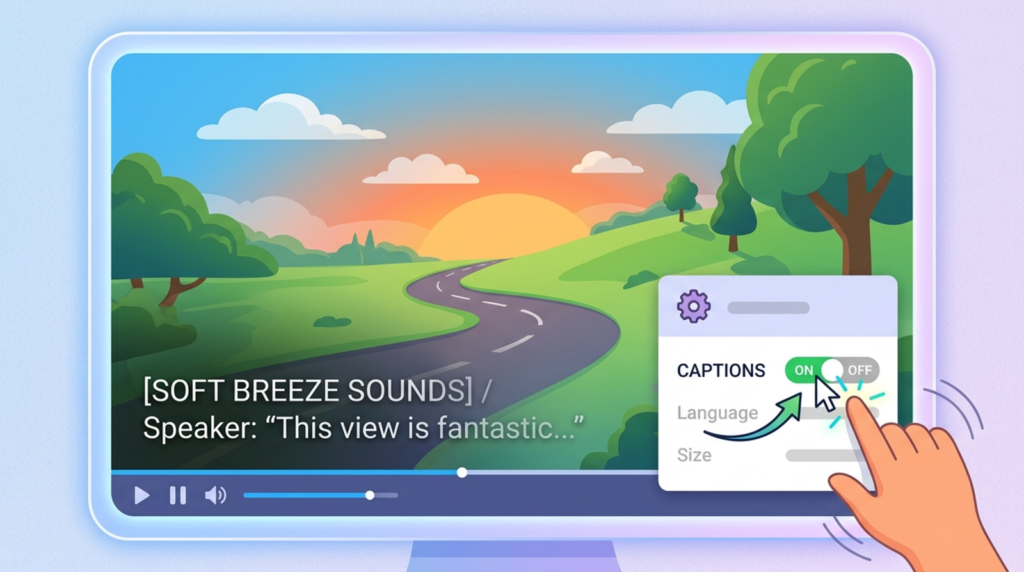
Important for troubleshooting:
-
Closed Captions = TV system level
-
Subtitles = App or content level
Turning off one doesn’t always disable the other.
Turning Off Captions in Netflix on Samsung TV
Netflix controls its own subtitles.
Do this while a show is playing:
-
Press Up on remote
-
Select Dialogue icon
-
Set Subtitles to Off
Netflix ignores Samsung’s global caption settings.
Turning Off Captions on YouTube (Samsung TV)
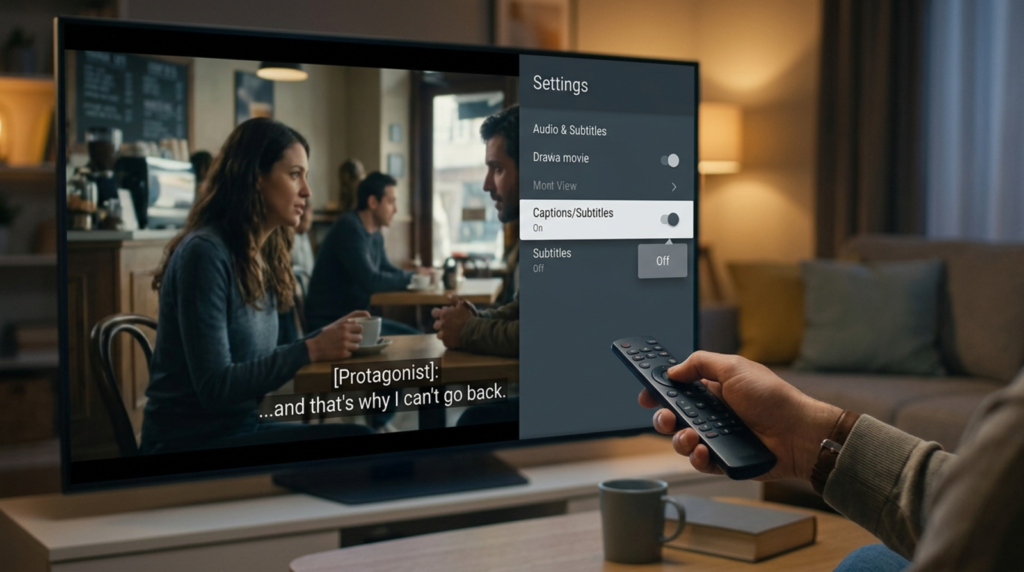
-
Play any video
-
Click the CC icon
-
Turn captions off
Or:
Settings → Subtitles → Off
Brand New Caption Ideas (for videos/social posts):
- “2026 hack: Turn off captions and actually enjoy the visuals 😌🚫”
- “POV: Finally turning off captions and seeing the movie in HD clarity ✨”
- “Stop letting captions ruin your vibe in 2026 📴”
- “The most satisfying moment: Turning off auto-captions 🔥”
- “Clean screen gang only 👀 Turn off captions today!”
- “If you still have captions on in 2026… we need to talk 😂”
- “Turning off captions = instant mood upgrade 🖤”
- “No more reading while watching. Here’s how in 2026 👇”
- “Captions off. Focus on. Let’s go 🎥”
- “2026 resolution: Turn off captions and actually watch the show 😌”
Turning Off Captions on Amazon Prime Video
During playback:
-
Select Speech Bubble
-
Choose Off
Prime Video always overrides system captions.
Hulu, Disney+, Apple TV+ Caption Fix
Same pattern:
-
Start content
-
Open playback menu
-
Disable subtitles manually
Each app has independent controls.
Why Captions Keep Coming Back (And How to Stop It)
Usually caused by:
-
Streaming app defaults
-
HDMI devices (cable box / Roku / Firestick)
-
Accessibility settings synced to Samsung account
Fix:
-
Turn captions off in each app
-
Restart TV
-
Power cycle external devices
Power Reset Trick (Surprisingly Effective)
Try this:
-
Turn TV off
-
Unplug for 60 seconds
-
Hold power button on TV (not remote) for 10 seconds
-
Plug back in
This clears subtitle cache.
Turning Off Captions on Samsung TV with Cable Box
Your cable box may be forcing captions.
Check:
-
Comcast/Xfinity settings
-
Spectrum accessibility
-
DirecTV CC menu
Disable captions directly on the box.
Turning Off Captions with Firestick or Roku
Those devices override Samsung:
Firestick:
Settings → Accessibility → Closed Captions → Off
Roku:
Settings → Accessibility → Captions → Off
Accessibility vs Convenience (A Gentle Reminder ❤️)
Closed captions exist for viewers who rely on them.
If someone in your home needs captions, consider toggling instead of permanently disabling.
Tech can be inclusive and cozy.
Common Mistakes to Avoid
❌ Turning off captions only on TV, not apps
❌ Forgetting HDMI devices
❌ Confusing subtitles with CC
❌ Skipping power reset
❌ Assuming one fix works everywhere
Quick Caption-Off Checklist
Save this 💾
-
✅ TV Accessibility Off
-
✅ Streaming App Subtitles Off
-
✅ Cable Box CC Off
-
✅ External Device CC Off
-
✅ Power Reset
SEO Tip for Bloggers Covering Samsung TVs
If you’re publishing this topic:
Use semantic keywords like:
-
disable subtitles Samsung TV
-
Samsung closed caption settings
-
remove captions Samsung Smart TV
-
Samsung accessibility captions
-
how to stop subtitles Samsung
Google loves contextual clusters.
Engagement Tip (Yes — Even for Tech Posts)
End your article with:
👉 “Did this fix your captions? Comment your TV model below.”
It increases dwell time and trust signals.
Frequently Asked Questions (Featured Snippet Ready)
How do I turn off captions on Samsung TV?
Go to Settings → General → Accessibility → Caption Settings → Caption Off.
Why won’t captions turn off?
Usually because streaming apps override system settings.
Is Closed Caption the same as subtitles?
No. Closed captions are system-based. Subtitles are app-based.
Can I disable captions permanently?
Yes — but you must turn them off on the TV and in every app.
Where is Accessibility on Samsung TV?
Settings → General & Privacy → Accessibility.
Why do captions come back after restart?
App defaults or external devices re-enable them.
How do I remove subtitles from Netflix on Samsung TV?
During playback, select the dialogue icon and turn subtitles off.
Do Firestick or Roku affect Samsung captions?
Yes. They have separate accessibility controls.
Will software updates reset captions?
Sometimes — always recheck after updates.
Emotional Reality Check 💕
There’s nothing more annoying than finally sitting down to relax… and boom — giant subtitles across your screen.
Now you know exactly how to handle it.
Control your TV.
Control your peace.
Control your cozy evenings ✨
Final Thoughts on Turning Off Captions on Samsung TV
Turning off captions on Samsung TV isn’t complicated — it just hides in different places depending on your model, apps, and connected devices.
Once you understand the layers (TV + apps + HDMI devices), you’ll never feel stuck again.
If this guide helped:
❤️ Save it
💬 Share it
📺 Comment your Samsung model
Your future self will thank you.

Grayson Hale is a passionate writer who transforms everyday thoughts into meaningful words. His work focuses on emotions, life experiences, and modern perspectives that connect deeply with readers.